
PeachComm — a Cisco partner
The Webex App for Your Business Phone System
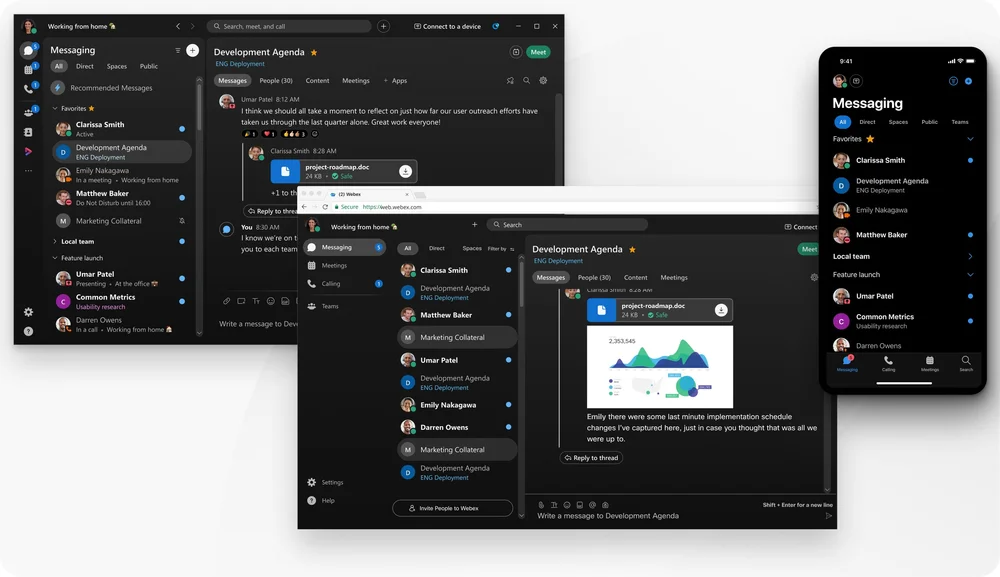
Make and answer calls, check voicemail and use your business number on your computer, phone and tablet. The Webex app comes with every PeachComm plan and stays in sync with your desk phone.
Already a customer? How to install the apps
Get a quote for the Webex app
Tell us how many people need business calling and whether they use desk phones or just the app. We'll send you a quote.
Desktop app for Windows and Mac
Install the Webex app on a Windows PC or a Mac, and your computer works as a full business phone. It shares your number, voicemail and call history with your desk phone.
Calling from your computer
- Your business number rings in the app and on your desk phone, so callers reach the same line either way.
- A dial pad, company directory and synced call history, with missed calls flagged for a quick callback.
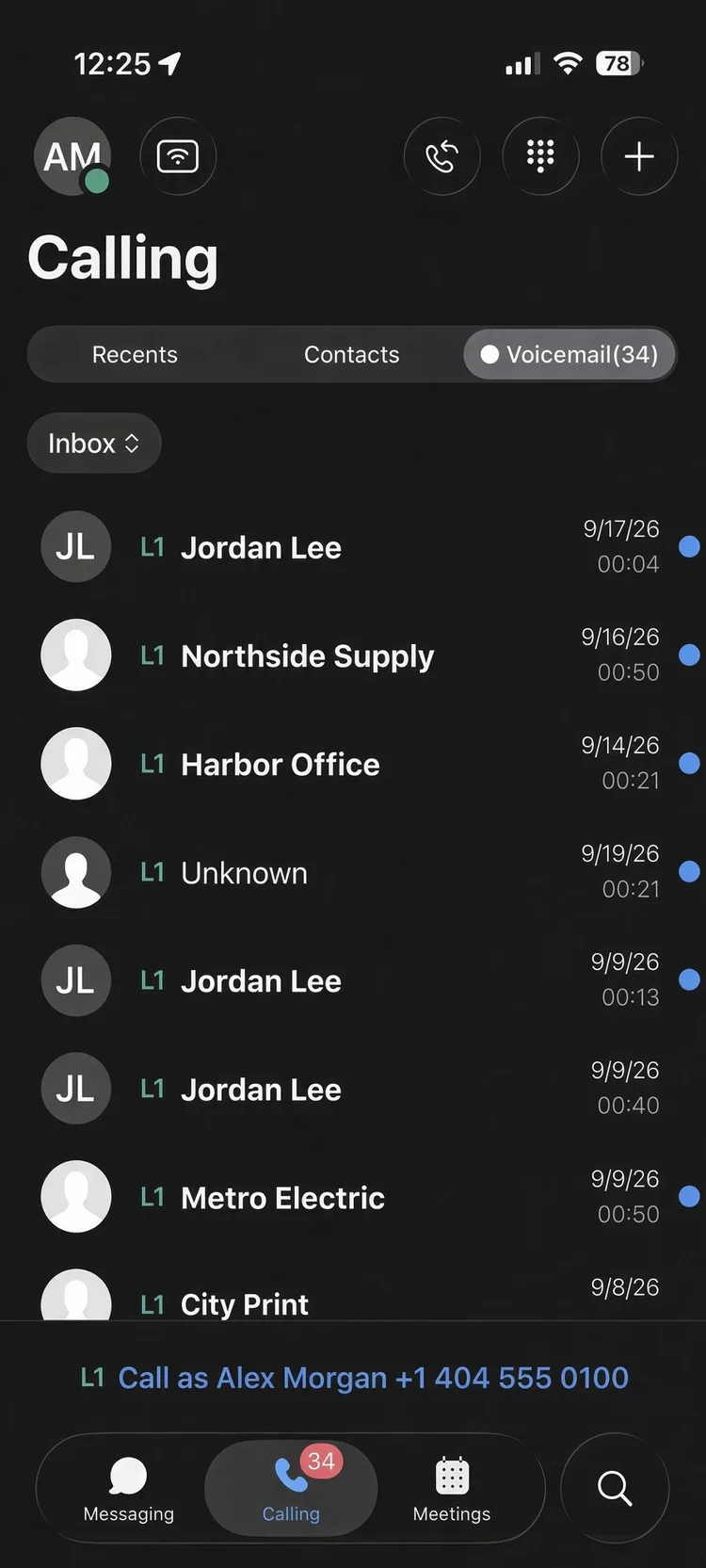
- Visual voicemail with playback, one-click callback and a written transcript.
- Hold, transfer, conference, park, call recording and screen sharing, all without leaving the call.
- More than one line in the same app, for people who answer several numbers.
- Desk phone control: dial from your computer and talk on your Cisco desk phone, or pull a live call from the desk phone into the app.
- On Windows, a calling dock stays on top of your other windows and handles several calls at once, including pickup, park and transfer.
- Click to call from the directory, Outlook and web pages, with your business number as the caller ID.
Included in Basic, Standard and Premium


AI on the desktop app
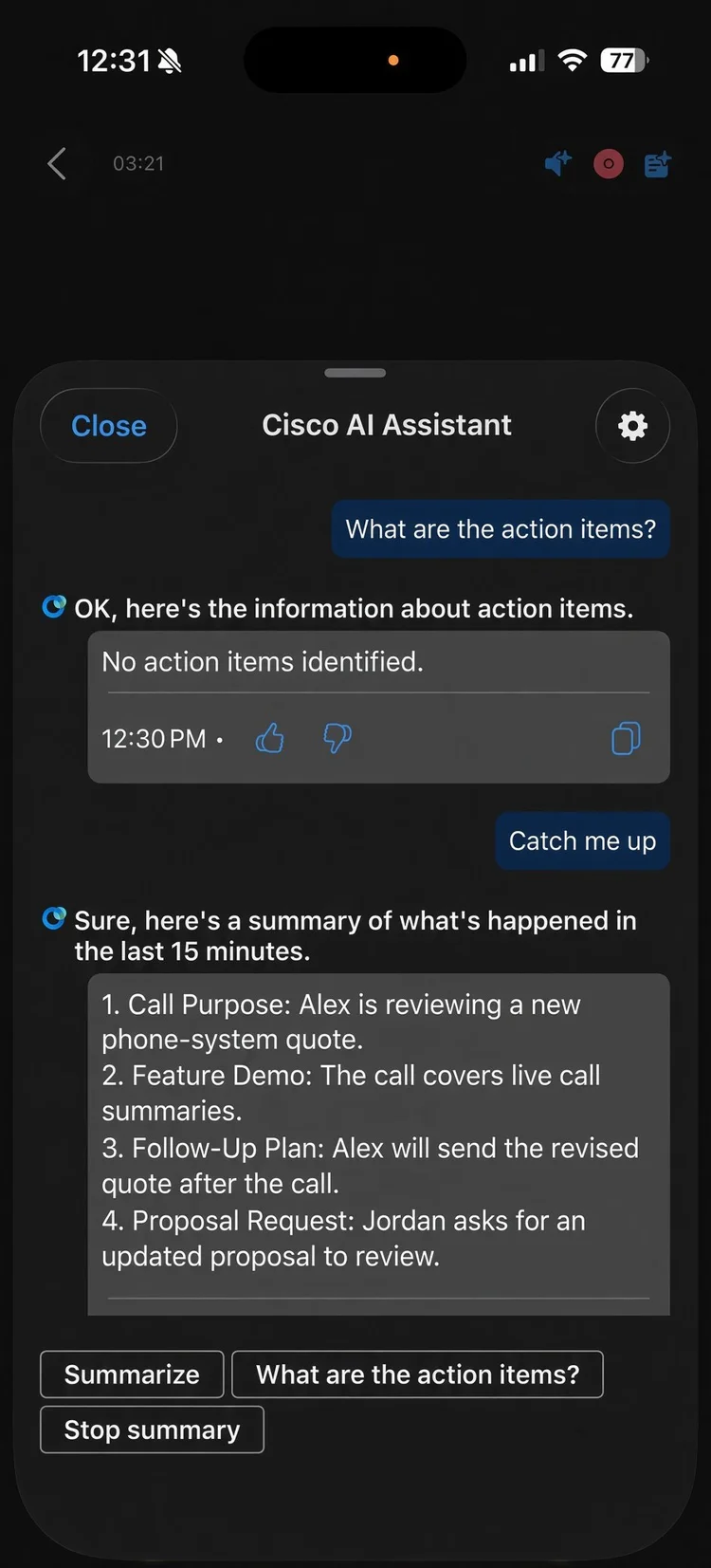
- Cisco AI Assistant for Webex Calling opens from the call controls and writes a summary while the call is still going.
- Step away and ask it for a catch-up summary. It also keeps a running list of action items, so nobody has to take notes by hand.
- After the call, the summary, transcript and action items are saved in your call history. You can also pass them along when you transfer a call.
- Recorded calls get an AI summary too, and you can search any transcript for a word.
- Real-time closed captions let you read the conversation as it happens.
- Noise removal cleans up your side of the call and the caller's side, and voice optimization filters out people talking nearby.
- HD voice makes calls from ordinary phone lines sound clearer.
Included in Basic, Standard and Premium


Mobile and tablet app
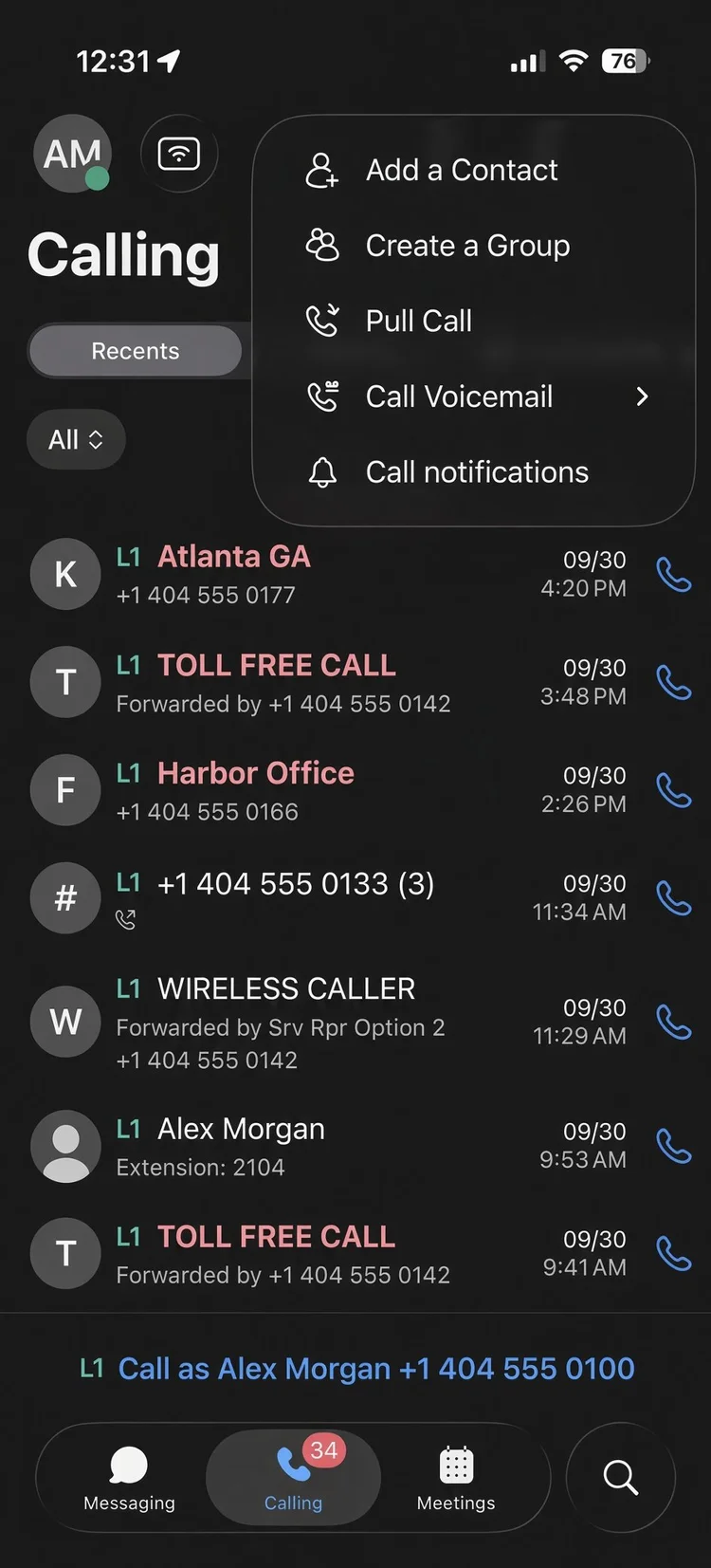
The Webex app runs on iOS and Android phones and tablets, so business calls follow you out of the office.
Calling on your phone
- Your business number goes with you, and it's the number people see when you call.
- The dial pad, company directory and call history match your computer and desk phone.
- Visual voicemail plays on your phone, with a callback button and a written transcript.
- Hold, transfer, conference and call forwarding sit right on the call screen.
- Several lines on one phone, each with its own ringtone.
- Call pull moves a live call from your desk phone to the app, or back again, without dropping the call.
AI on mobile
- Start Cisco AI Assistant from the call screen for a live summary and action items.
- Summaries and transcripts land in your call history, and recorded calls get a summary too.
- Noise removal works on both sides of the call, and voice optimization filters out nearby voices.
Included in Basic, Standard and Premium
Share your screen during a call or meeting
Walk a customer through a quote or a coworker through a spreadsheet. You decide what people see: your whole screen or a single application.
During a call
Basic, Standard and Premium
In the desktop app on Windows and Mac, share your whole screen or one application without leaving the call. If someone needs a hand, you can also give them control of your desktop.

In a meeting
Standard and Premium
From your phone, share your screen, a photo, a PDF or the view from your rear camera. On a computer, immersive share puts you in front of your slides, so people see you while you present. Meeting screen sharing isn't included in Basic.

Use your business number on your own phone
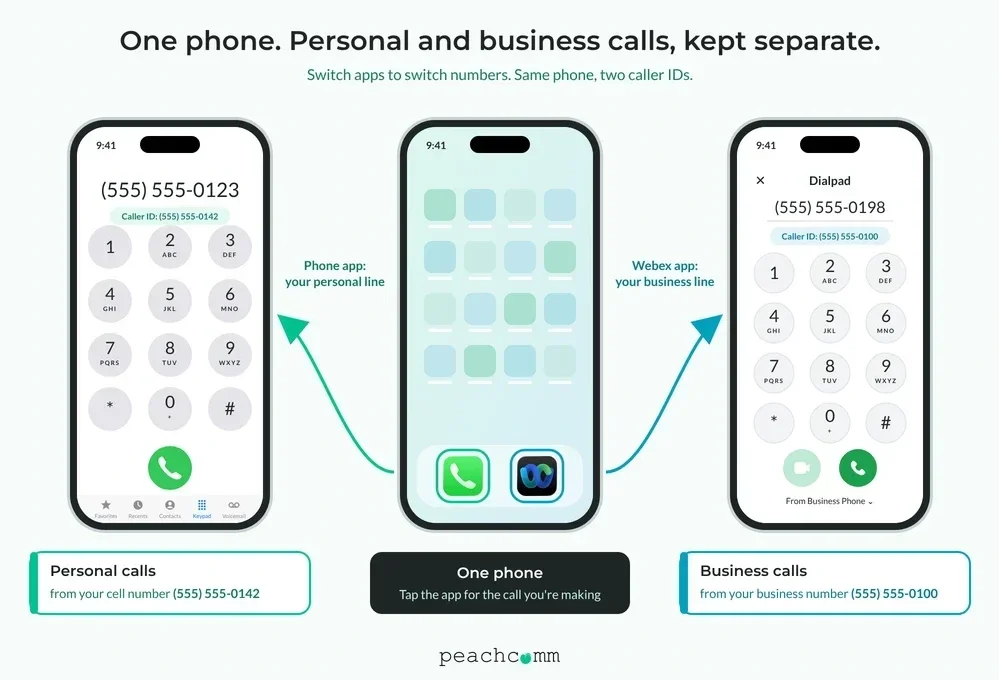
Add the Webex app to the phone you already carry. Calls you make from the app show your business number, and calls from your phone's regular dialer still show your personal number.
- Customers see your business number, never your personal cell number.
- Switch between business and personal calls by switching apps.
- There's no second phone to buy, charge or carry.
Included in Basic, Standard and Premium
Move a live call between devices
Start a call at your desk, pull it to your cell phone as you leave the office, and keep talking. Call pull works between your desk phone, computer and mobile phone. With single number reach, your business number can also ring your cell phone, so you can answer from anywhere.
One business numberrings every device you choose
Call pull and single number reach: included in Basic, Standard and Premium
Messaging and meetings in the same app
On Standard and Premium, the Webex app also has team messaging spaces and video meetings, with a Personal Room for each person. Messaging and meetings aren't included in Basic.
Looking for your meeting room? Join from our video meetings page.
Use Microsoft Teams? Make and take business calls in Teams with Cisco Call for Microsoft Teams, included at no extra charge on Basic, Standard and Premium. See Teams, Outlook and Google integrations and CRM click to call.
Run a support or sales line? Customer Assist, a separate package, runs in the Webex desktop app on Windows and Mac.
Get the app
Download the Webex app for Windows, Mac, iOS or Android, then sign in with your work email. Our How to Install the Apps page has step-by-step instructions.
Still using UC-One? See how to move to the Webex app.
Need desk phones too? See desk phones, business phone systems or compare plans.
Frequently asked questions
Which devices can run the Webex app?
Windows and Mac computers, plus iOS and Android phones and tablets. Your calls, voicemail and call history stay in sync across all of them.
Can I use my business number on my personal cell phone?
Yes. The Webex app puts your business line on your own phone, and calls you make from the app show your business number, not your personal one.
Can I share my screen during a call?
Yes. In the desktop app, you can share your whole screen or one application during a call on Basic, Standard and Premium. Screen sharing from your phone works in meetings on Standard and Premium.
Can I move a call from my desk phone to my cell phone?
Yes. Call pull moves a live call between your desk phone, computer and phone without dropping the call.
Is the Webex app included in every plan?
Yes. Calling in the Webex app is included in Basic, Standard and Premium. Messaging and meetings are included in Standard and Premium and aren't included in Basic.
How do I install the Webex app?
Download it for Windows, Mac, iOS or Android, then sign in with your work email. Step-by-step instructions are on our How to Install the Apps page.
Put your business number on every device
Tell us how many people need the Webex app and who needs a desk phone. We'll put together a quote.
Microsoft Teams and Outlook are trademarks of Microsoft Corporation.